Galaxy XR: Capture and view 3D content in Gallery

Transform 2D content into spatial content. The 3D capture feature on Galaxy XR headsets, integrated with Samsung Gallery, allows users to create and view immersive 3D photos and videos. This feature enhances storytelling with realistic depth and engaging visuals, bringing still moments to life with Live Effect and offering immersive viewing experiences. Whether capturing 3D volumetric photos or converting 2D content into 3D, Galaxy devices make it easy to explore creativity and share captivating content.
Person wearing a Galaxy XR headset while viewing a 3D photo of a dog jumping in the Gallery app.

Galaxy XR: Capture and view 3D content in Gallery

Capture 3D photos and videos

Capture a photo or record a video with the Camera app.
  1. Double-press the Top button on the headset to open the Launcher. Or, hold your palm in front of you until the menu icon appears, and then pinch your thumb and index fingers together.
  2. Next, select the Camera app from the Apps tray. Take a photo or record a video:
    • Select Photo mode, and then select the Capture icon to take a picture.
    • For videos, choose Video mode, and then select the Record icon. Select the Capture icon to take a photo while recording.
Read less

View 3D photos and videos

Open the Gallery app to view your photos and videos in 3D.
  1. Double-press the Top button on the headset to open the Launcher. Or, hold your palm in front of you until the menu icon appears, and then pinch your thumb and index fingers together
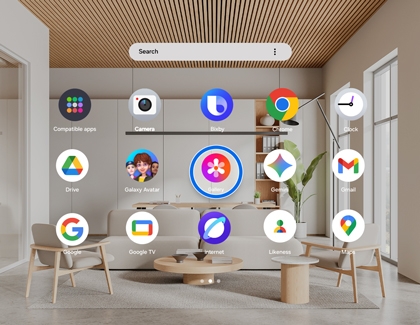
  2. Select the Gallery app from the Apps tray, and then select a photo or video from your library.
    Apps screen in the Galaxy XR headset with the Gallery app highlighted.
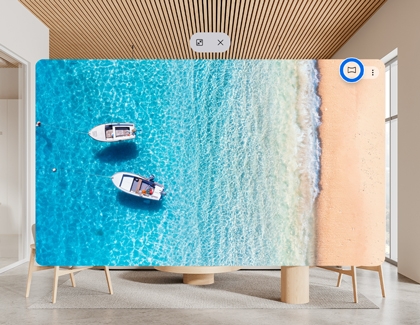
  3. Select the Immersive view icon (it looks like a rectangle) in the top right corner to view spatial content.
    A 3D photo displayed in the Gallery app with the Immersive view icon highlighted.
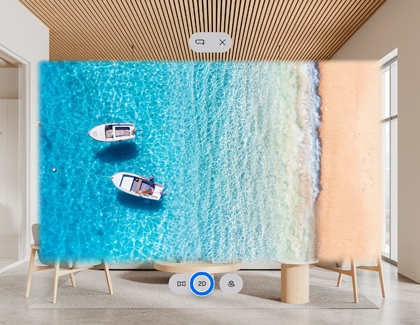
  4. Depending on the type of content you're viewing in immersive view, you can select the View type button to switch to your desired spatial view between 2D, 180 degrees, 360 degrees, 3D side-by-side, 3D top-bottom, 180 degrees 3D, or 360 degrees 3D view.
    A 3D photo displayed in the Gallery app with the View type button highlighted.
    Note: If the button cannot be selected, turn off the Live Effects icon (it looks like a box), or the content cannot be converted.
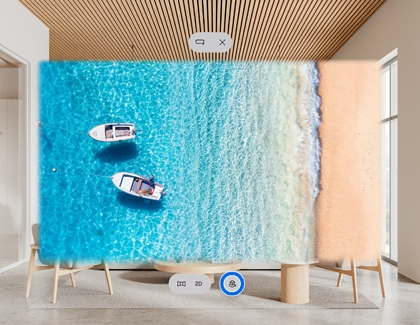
  5. When viewing a 2D still image, select the Live Effects button (it looks like a box with an arrow) to bring the images to life.
    A 3D photo displayed in the Gallery app with the Live Effects button highlighted.
Read less
Was this content helpful?
Table of contents
We're here for you

Contact Samsung Support

Contact us online through chat and get support from an expert on your computer, mobile device or tablet. Support is also available on your mobile device through the Samsung Members App.
auto-contact_us-pc-2x auto-contact_us-pc-2x


