Use the Finder on your Galaxy XR

The Finder on the Samsung Galaxy XR is a built-in search function designed to streamline your experience by helping you quickly locate apps, files, and settings. This article explains how to use the Finder effectively on your Galaxy XR.
A person wearing the Galaxy XR headset interacting with the Finder search bar on a large virtual screen.

Use the Finder on your Galaxy XR

Search with Finder

Unlike phones, the Galaxy XR's Finder focuses on essential search capabilities, including:
  • My Files: Locate files stored on your device.
  • Settings topics: Quickly access device settings.
  • Suggested apps: Discover new apps based on your usage patterns.
  • Recent searches:  Access your most recent searches.
 
To access the Finder, press the Top button on the headset to open the Launcher. Select the Quick settings icon from the panel, and then tap the Finder button. Use the Search bar to easily locate and open apps, files, or settings without browsing through your device.
 
The Finder app will automatically close when you navigate away, as there is no dedicated exit button.
Read more
Read less

Search the Apps tray

Use Search to quickly locate and launch apps, files, or settings without scrolling through your app list.
  1. Press the Top button to open the Launcher (Home screen).
  2. Swipe left to the Apps tray. The Search bar (magnifying glass icon) will appear at the top.
  3. Select the Search bar and type the app, setting, or file name using the virtual keyboard.
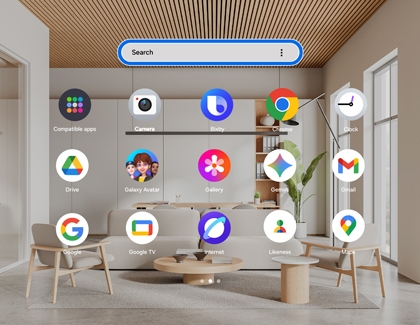
    Finder search bar highlighted on the Galaxy XR home screen.
  4. As you type, a list of matching results will appear. Select the desired item to open or access it.
Read more
Read less

Search My Files

Follow these steps to locate and access your files with My Files.
  1. Press the Top button to open the Launcher (Home screen).
  2. Locate and select the My Files app from the Apps tray.
  3. Use the Search bar at the top to find files, documents, or downloads by entering keywords or names with the virtual keyboard.
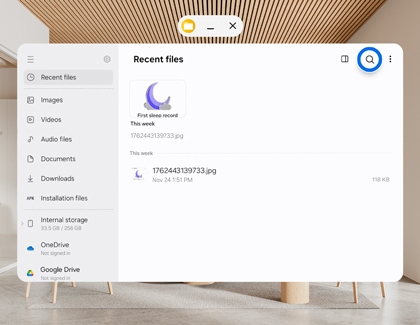
    Search icon highlighted in the My Files app.
  4. Browse through folders, or use the Categories tab to filter files by type (like Documents, Downloads, Images).
  5. Select the desired file to open, share, or manage it.


Need to back up your data? You can also use the My Files app to transfer content to or from your headset, ensuring your data is securely backed up.

Read more
Read less

Search Settings

Follow these steps to use the search function in Settings on your Galaxy XR.

  1. Press the Top button to open the Launcher (Home screen).
  2. Select Settings from the Apps tray.
  3. Tap the Search bar at the top of the Settings menu.
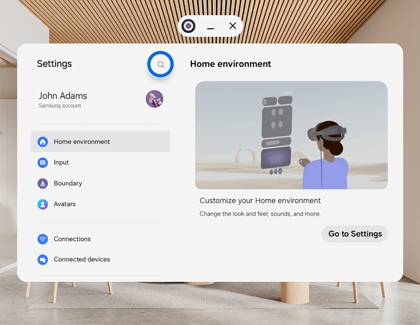
    Search icon highlighted in the Settings Home environment page.
  4. Use the virtual keyboard to type keywords related to the setting you want to find.
  5. Select the relevant result from the dropdown menu to quickly navigate to the desired setting.
Read more
Read less

Search recommended apps

Follow these steps to discover and install recommended apps on your Galaxy XR from the Play Store.

  1. Press the Top button to open the Launcher (Home screen).
  2. Select the Play Store from the Apps tray.
  3. Tap the Search bar at the top of the store interface.
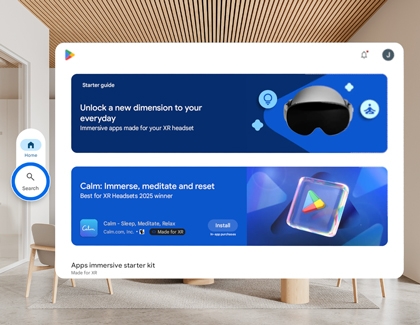
    Search icon highlighted in the Play Store immersive apps section.
  4. Use the virtual keyboard to type keywords related to the app you're looking for.
  5. Browse the Recommended apps section in the search results to discover popular or personalized suggestions.
  6. Select the desired app to view details and install it.
Read more
Read less
Was this content helpful?
Table of contents
We're here for you

Contact Samsung Support

Contact us online through chat and get support from an expert on your computer, mobile device or tablet. Support is also available on your mobile device through the Samsung Members App.
auto-contact_us-pc-2x auto-contact_us-pc-2x


