Access and manage apps on your Galaxy XR

The Galaxy XR offers seamless access to apps for an immersive experience. This guide explains how to view, download, uninstall, and manage apps, including rearranging them, checking updates, and resetting app data. Follow these steps to optimize your headset's functionality and ensure a smooth user experience.
A person wearing the Galaxy XR headset interacting with a large floating app screen in a bright living room.

Access and manage apps on your Galaxy XR

View apps on your headset

Learn how to view and navigate apps on your headset with ease.

  1. Press the Top button once shortly to open the Launcher.
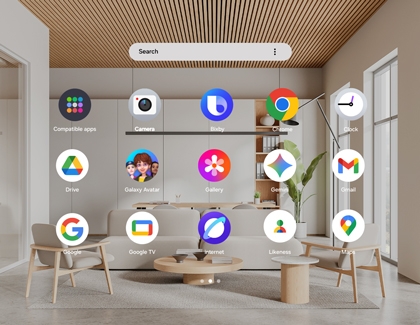
  2. Apps installed on your headset will be displayed.
  3. Use hand or eye gestures to swipe through the Apps tray.

Launcher screen dipslaying apps installed on the Galaxy XR.

Read less

Download apps on your headset

Note
Unsupported apps will not be available on the Play Store.
Discover how to download and install apps on your headset for enhanced functionality.
  1. Press the Top button to open the launcher.
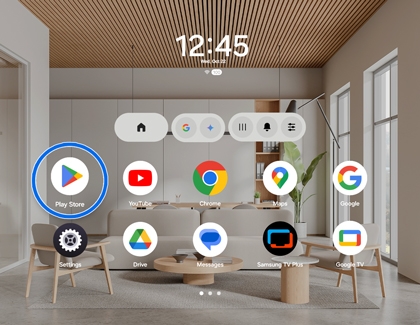
  2. Select the Play Store from the Apps tray.
    The Play Store icon highlighted in the Galaxy XR app launcher.
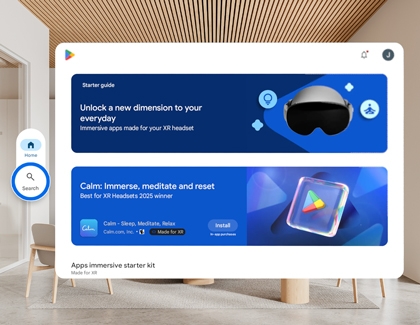
  3. Use the Search bar to find your desired app or browse through app categories.
    The Search tab selected in the Play Store on the Galaxy XR.
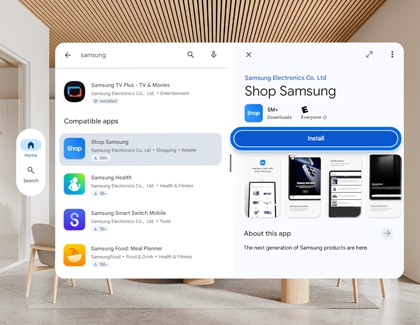
  4. Select the app, and then select Install.The Install button highlighted for an app in the Play Store on the Galaxy XR.
Read less

Uninstall apps on your headset

Note
Some preloaded apps, like Netflix, cannot be deleted but can be disabled.
Use these steps to uninstall apps on your headset for a cleaner and more efficient device.
  1. Press the Top button to open the Launcher.
  2. Locate the app you want to uninstall.
  3. Use your gesture method to select and hold the app until a menu appears.
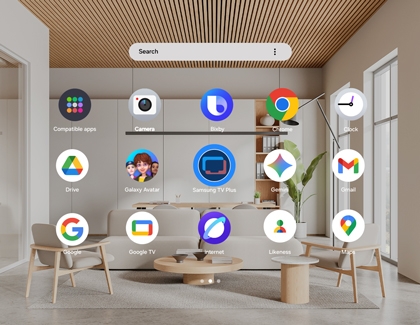
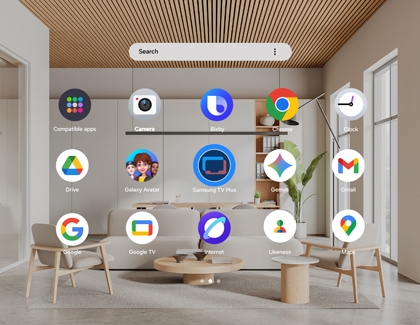
    Apps screen with the Samsung TV Plus app highlighted.
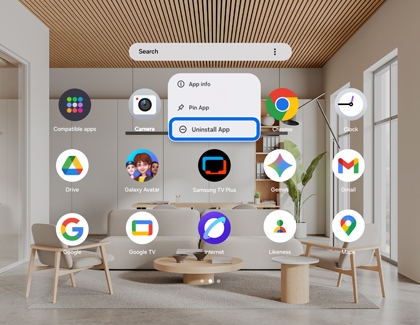
  4. Choose Uninstall from the options.Apps screen showing the options menu for the Samsung TV Plus app with the Uninstall App option highlighted.
Read less

Rearrange apps on your headset

Note
App folders are not supported.
Organize your apps for a more personalized and efficient device experience.
  1. Press the Top button to open the Launcher.
  2. Use your gesture method to select and hold the app you want to move.
    Apps screen showing the options menu for the Samsung TV Plus app with the Uninstall App option highlighted.
  3. Drag and drop it to the desired position in the Apps tray.
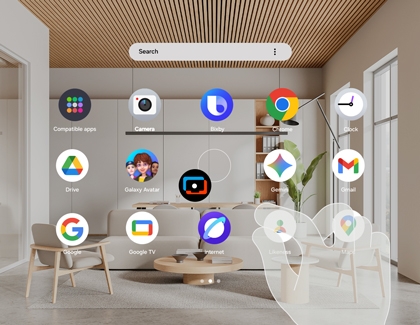
    Apps screen showing a drag gesture over the Samsung TV Plus app icon to move and rearrange its position.


Read less

Manage permissions for apps on your headset

Control app permissions for enhanced privacy and security on your device.
  1. Press the Top button to open the Launcher.
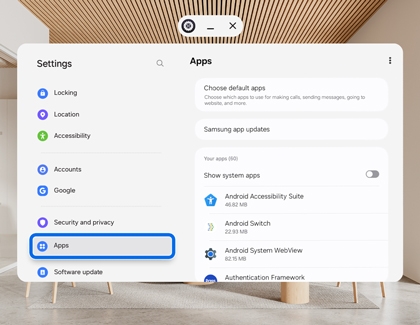
  2. Select Settings, and then select Apps.
    Galaxy XR Settings screen showing the Apps menu highlighted.
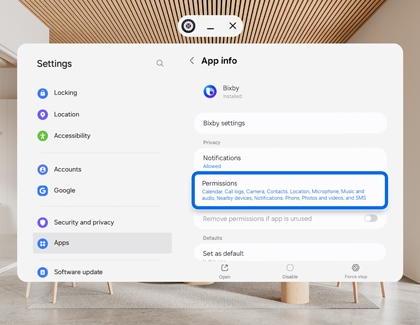
  3. Choose the app you want to manage, and then select Permissions.
    Galaxy XR App info screen showing the Permissions section highlighted.
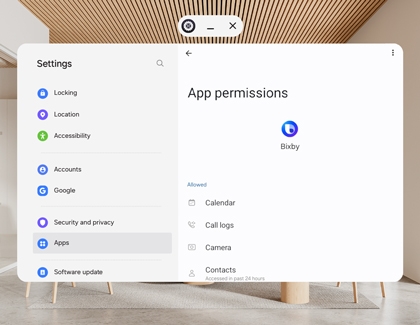
  4. Adjust the available permissions as needed.
    Galaxy XR App permissions screen for Bixby with the list of allowed permissions displayed.
Read less

Change default apps on your headset

Customize your default apps for a more tailored device experience.
  1. Press the Top button to open the Launcher.
  2. Select Settings, and then select Apps.
    Galaxy XR Settings screen showing the Apps menu highlighted.
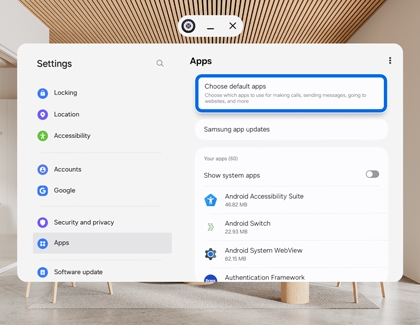
  3. Select Choose default apps and then select the default app to manage.
    Galaxy XR Settings screen showing the Choose default apps option highlighted.
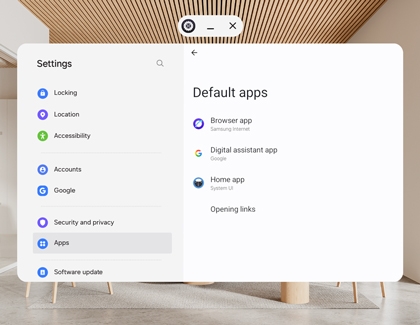
  4. Select an app to set as the default and adjust settings accordingly.
    Galaxy XR Settings screen showing the Default apps list.
Read less

Check for app updates on your headset

Keep your apps up to date for optimal performance and security.
  1. Press the Top button to open the Launcher.
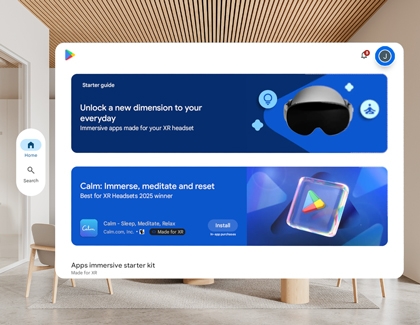
  2. Open the Play Store, and then select your Profile icon in the top right corner.
    Galaxy XR Play Store home screen with immersive app recommendations displayed.
  3. Select Manage apps & devices.
    Galaxy XR screen showing the account menu with Manage apps and device highlighted.
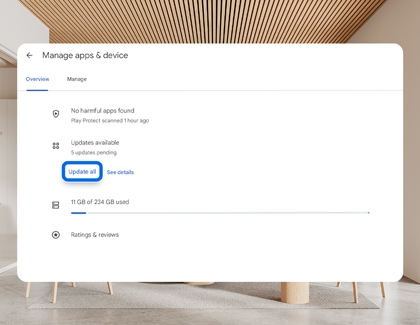
  4. If an update is available, select Update or Update all.
    Check for app updates screen on Galaxy XR showing the Update all button highlighted.
Read less

Reset an app on your headset

Important
Clearing the data will reset the app to factory default settings. Any personal settings or data saved on the app will be removed. Some system apps cannot have their data cleared.
Reset an app to its original settings for improved performance and functionality.
  1. Press the Top button to open the Launcher.
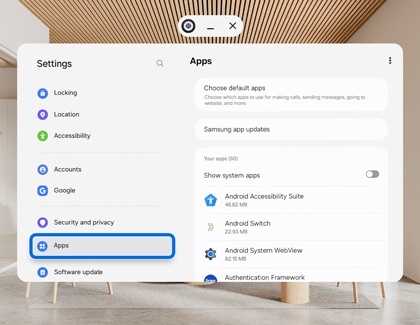
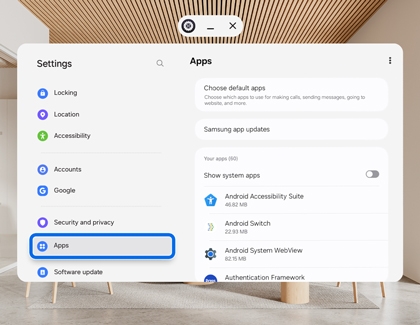
  2. Select Settings, and then select Apps.
    Galaxy XR Settings screen showing the Apps option highlighted
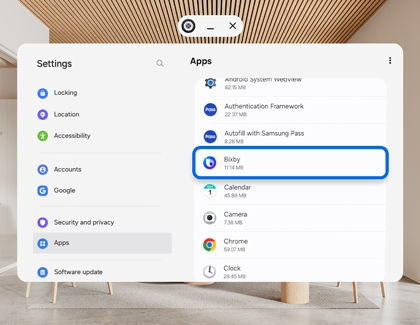
  3. Choose the desired app you want to reset.
    Galaxy XR Settings screen showing the Bixby app highlighted in the Apps list
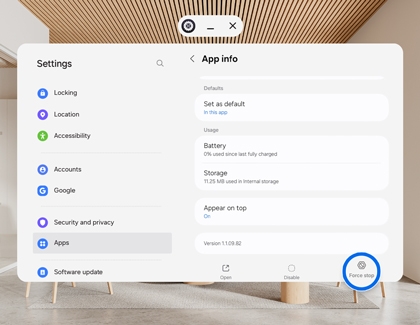
  4. Select Force stop, and then select Storage.
    Galaxy XR App info screen showing the Force stop button highlighted
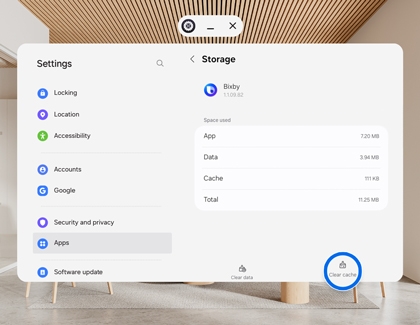
  5. Select Clear cache to get rid of residual files that could be slowing down the app.
    Galaxy XR Storage screen showing the Clear cache button highlighted
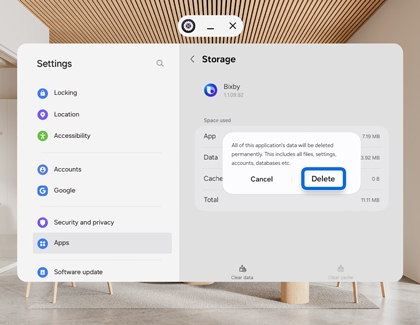
  6. Select Clear data, and then select Delete to reset the app. This will completely wipe the app and reset it to the original settings.
    Galaxy XR Storage confirmation popup showing the Delete button highlighted
Read less
Was this content helpful?
Table of contents
We're here for you

Contact Samsung Support

Contact us online through chat and get support from an expert on your computer, mobile device or tablet. Support is also available on your mobile device through the Samsung Members App.
auto-contact_us-pc-2x auto-contact_us-pc-2x


