Use the Galaxy XR app on your Galaxy phone
- The app is only compatible with Galaxy phones that have the Continuity Service app (version 1.3.8 or later) installed. Keep apps updated via the Galaxy Store.
- The Galaxy XR Mobile app is not supported on tablets, third-party devices, or iOS.
Download the Galaxy XR mobile app.
Open the Galaxy Store on your phone. Tap the Search bar, search for "Galaxy XR," and then select it. Tap Download, and then Install.
Put on the headset and turn on Passthrough.
To view the real-world environment through the headset's cameras, activate Passthrough by double-tapping the Touchpad on the right side of the headband.
Pair your devices.
Press the Top button on the headset to open the Launcher. Select the Quick settings icon from the panel, and then tap the Phone link button. Next, select Pair from the pop-up on the headset.
If the Phone link button doesn't appear, swipe left through the menu to the last panel, and then select the Add icon to add it.
Set up the Galaxy XR mobile app.
Open the Galaxy XR app on your phone, and then tap Get started. Follow the on-screen instructions to complete the setup.
View connection status.
When your headset is on and worn, it will show as connected, and the battery percentage will be displayed.
Manage Notifications.
Tap Notifications to control which apps send notifications to your headset.
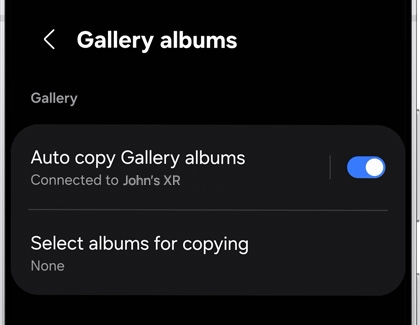
Sync Gallery albums.
Tap Gallery albums, and then turn on the switch next to Auto copy Gallery albums to sync selected albums from your phone to your headset. Tap Select albums for copying, and then choose specific albums to copy.

Explore additional app features.
- More options: Disconnect your headset from your phone by tapping the three vertical dots in the top right corner, and then tapping Unpair.
- Tips: Access usage tips for your headset.
- Permissions: View permissions used by the app.
- About headset: View the headset's model name and serial number, check for available software updates, and other details.
- About Galaxy XR: View the app version and adjust settings in the App info menu, including notifications, screen time, app permissions, and usage preferences.
Contact Samsung Support


