Gemini is an AI-powered assistant that simplifies your tasks by seamlessly accessing multiple apps like Google Maps, Calendar, YouTube, and other apps. With Gemini, you can ask questions, find information, or issue commands without switching apps.
Set your default Digital assistant
First, set Google as your default digital assistant.
- Swipe down from the top right corner of the screen to open the Quick settings panel.
- Tap the Settings icon (it looks like a gear), and then tap Apps.
- Tap Choose default apps, and then tap Digital assistant app.
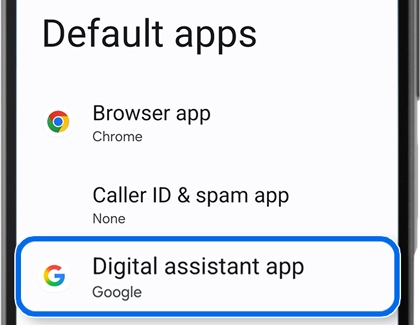
- Tap Digital assistant app again, and then tap Google.
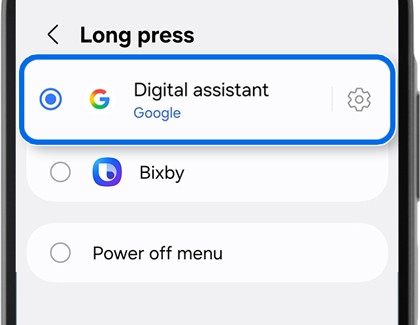
- To use Google with the Side button, tap the Back button four times to return to the main Settings menu, and then tap Advanced features. Tap Side button, and then tap Long press. Tap Digital assistant, and then tap Google.
Use Google Gemini
Gemini integrates with apps like Google Maps, Calendar, and YouTube for seamless tasks.
- Press and hold the Side button to activate Gemini.
- Tap the Live icon (the three vertical lines with a star) and listen to the introduction.
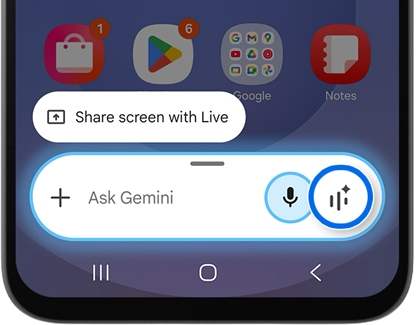
- Next, review the Go Live with Gemini information. Swipe to and tap OK.
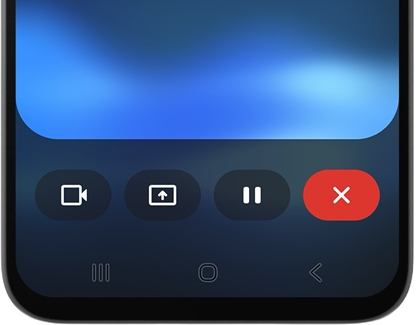
- Begin conversing with Gemini about a topic of your choice on the Live with Gemini screen. Gemini will answer you with information, resources, and tips. The following options are available on the Live with Gemini screen:
- Video: Gemini can use your camera to see nearby items. Tap the Video icon, and then position your phone at something. Ask a question about the object; Gemini will provide details related to the object.
- Share screen: To share your screen with Gemini, tap the Share screen icon, select your desired option from the drop-down menu, and then tap Share screen. To turn off screen sharing, swipe down from the top right or center of the screen to open the Notification panel, and then tap the down arrow on the Google screen share notification. Tap Stop sharing.
- Pause: Tap the Pause icon to pause your conversation. Tap the Live icon to resume your conversation.
- Close: Tap the Close icon to exit Live with Gemini.
- Gemini will still be available even if you navigate away from the Go Live with Gemini screen. Tap Listening… in the top left corner of the screen to open a “Live with Gemini” bar at the top of the Home screen. Tap the Live icon to continue chatting.
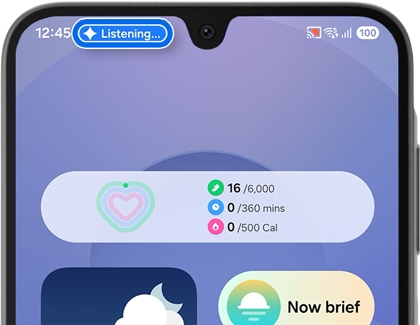
- To place Live with Gemini on hold, tap the Pause icon on the bar. To exit Live with Gemini, tap the Close icon on the bar.




