Explore the Samsung eco experience on the Galaxy Tab A11+

The Samsung Galaxy Tab A11+ offers a seamless and intelligent experience, featuring Google Gemini for AI-powered assistance, Circle to Search for quick information access, and intelligent math-solving capabilities in Samsung Notes. Boost productivity with Second Screen and DeX for enhanced workflows and a desktop-like interface.
Three Galaxy Tab A11 Plus tablets in different colors displayed at an angle against spheres.

Explore the Samsung eco experience on the Galaxy Tab A11+

Google Gemini on the Galaxy Tab A11+

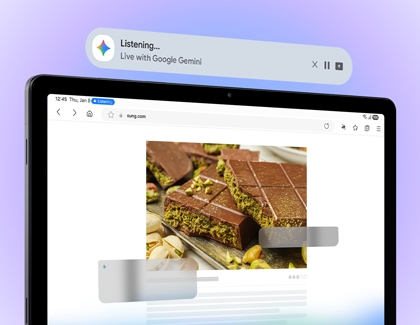
Galaxy Tab A11 Plus showing the Google Gemini interface with a listening prompt on the screen

Gemini, an AI-driven assistant, streamlines tasks by effortlessly connecting with apps like Google Maps, Calendar, and YouTube. It allows you to ask questions, search for information, or execute commands without the need to switch between apps.

Set your default Digital assistant

  1. Open the Quick settings panel by swiping down from the top right corner, and then tap the Settings icon (gear).
  2. Tap Apps, then tap Choose default apps, and then tap Digital assistant app.
  3. Tap Digital assistant app again, and then tap Google as your default assistant.


To launch Google when pressing the Side button, navigate to Settings. Tap Advanced features, and then tap Side button. Tap Long press, then tap Digital assistant, and then tap Google.

Use Gemini

  1. Press and hold the Side button to activate Gemini.
  2. Tap the Live icon (three vertical lines with a star) and follow the introduction.
  3. Review the Go Live with Gemini information, and then tap OK.
  4. Start a conversation on the Live with Gemini screen. Gemini provides information, resources, and tips.

Features on the Live with Gemini Screen

  • Video: Use your camera to see nearby items. Tap the Video icon, point your device, and ask questions for details. 
  • Share screen: Tap the Share screen icon, select an option, and share your screen. To stop, swipe down from the top left corner to open the Notification panel, and then tap the Google screen share notification.
  • Pause: Tap the Pause icon to pause your conversation. Resume by tapping the Live icon.
  • Close: Tap the Close icon to exit Live with Gemini.

Gemini remains accessible even after navigating away. Tap "Listening…" in the top left corner to open the Live with Gemini bar on the Home screen. Use the Pause or Close icons on the bar to manage your session.

Read less

Circle to Search on the Galaxy Tab A11+

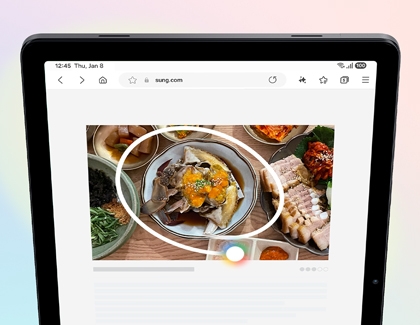
Galaxy Tab A11 Plus screen showing a food photo being searched using Circle to Search.

Circle to Search is a unique feature on the Galaxy Tab A11+ that lets you instantly find information about objects, items, or content by circling them on your screen.

Turn on Circle to Search

  1. Swipe down from the top right corner of the screen to open the Quick settings panel.
  2. Tap the Settings (gear), and then tap Display.
  3. Tap Navigation bar, and then make sure the switch next to Circle to Search is turned on.

Use Circle to Search with the Home button

  1. Open an app and locate an interesting object or item. If using the Camera app, point your device at the item first.
  2. Touch and hold the Home icon on the navigation bar.
  3. Circle or tap the item of interest with your finger.
  4. AI will provide related search results. Swipe up to view more or tap Dive Deeper in AI mode for context-relevant follow-up answers.
  5. Select a result to open it in a new window.
  6. When text is detected, you can tap Copy to extract text to your clipboard, or tap Translate to receive an instant translation. 

Use Circle to Search with Google Assistant

  1. Open an app like Chrome or Samsung Internet and locate something interesting.
  2. Touch and hold the Home icon, then circle or tap the item.
  3. Tap Add to your search in the Google search bar.
  4. Type a query (e.g., "find the best price" or "does it come in red?") and tap the Search icon.
  5. Browse results or use Voice search (tap the microphone icon) for hands-free queries.
Read less

Extend your PC screen to the Galaxy Tab A11+

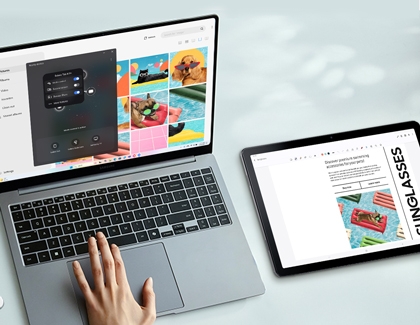
Galaxy Tab A11 Plus used as a second screen for a laptop showing a pet accessory article.

Seamlessly extend your PC's screen to your Galaxy Tab A11+ for a flexible workspace. Perfect for presentations or collaboration, this feature mirrors your PC's display onto the tablet, allowing you to control your computer using the tablet's touch screen.

Use Second screen

  1. On your tablet, swipe down from the top right corner with two fingers to open the Quick settings panel, then tap the Second screen icon.
  2. On your PC, select the Start menu in the bottom left corner of the screen, then search for and select Display settings.
  3. Select Multiple display, and then select Connect next to "Connect to a wireless display."
  4. Select your tablet's name from the list. Your PC's screen will now appear on the tablet.


Customize your display

  • Arrange displays: Choose between Extend desktop or Duplicate desktop. Drag and drop monitors to rearrange them.
  • Display mode: Select Duplicate, Extend, or Second screen only.
  • Scale and resolution: Adjust the display percentage and resolution to suit your preferences. 
  • Disconnect: Press the Windows + K keys, and then select Disconnect when done.
Read less

Use DeX on the Galaxy Tab A11+

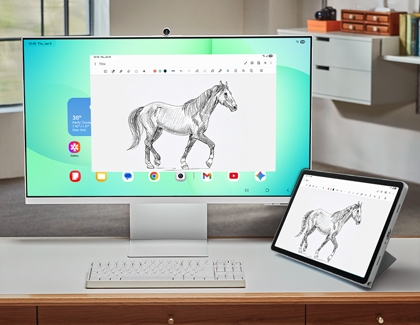
Samsung DeX setup with a monitor, keyboard, and Galaxy Tab A11 Plus showing a horse sketch.

Transform your Galaxy Tab A11+ into a desktop-like environment with DeX mode. This feature boosts productivity, making it perfect for work, study, or entertainment. Navigate the interface using the touch screen or a connected mouse and keyboard.

Use DeX on the tablet

  1. Swipe down from the top of the screen with two fingers to open the Quick settings panel.
  2. Tap the Samsung DeX icon, and then follow the on-screen instructions.
 

Use DeX with an external display

  1. Navigate to and open Settings, then tap Connected devices.
  2. Tap Samsung DeX, and then choose:  
    • Connect Wireless: Connect DeX to a wireless smart Monitor or a smart TV.
    • Use a DeX cable or HDMI cable: Connect the USB-C end to the tablet and the other end to the TV or monitor's HDMI port.
Read less

Solve math equations in Notes on the Galaxy Tab A11+

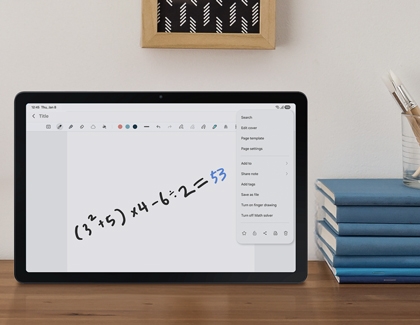
Galaxy Tab A11 Plus on a desk showing a handwritten math equation being solved in Samsung Notes.

Leverage Galaxy AI in Samsung Notes to quickly solve math problems. Simply write an equation ending with an equal sign, and Galaxy AI will deliver instant solutions.

Use Math solver

  1. Open the Samsung Notes app, and then select an existing note or tap the pencil icon to create a new one.
  2. Tap the More options icon (three vertical dots) and then turn on Math solver.
  3. Write your math problem, ensuring it ends with an equal sign.
  4. The built-in intelligence feature will instantly solve it for you.
Read less
Was this content helpful?
Table of contents
We're here for you

Contact Samsung Support

Contact us online through chat and get support from an expert on your computer, mobile device or tablet. Support is also available on your mobile device through the Samsung Members App.
auto-contact_us-pc-2x auto-contact_us-pc-2x


