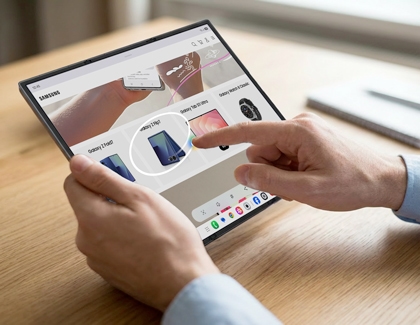
Google Intelligence features, including Circle to Search and Gemini Live, integrate seamlessly with your Galaxy Z TriFold for enhanced productivity and communication.
Note
- An internet connection is required to use the Circle to Search feature. Results may vary by uniqueness, clarity, and framing of circled images, and related factors.
- Circle to Search is not supported in apps that prohibit screen capture due to security and copyright issues.
Circle to Search with Google
Circle to Search with Google is a convenient feature that allows you to quickly search for information by circling, highlighting, or tapping on items on your screen. Here's how to use it via the Camera app or any app on your Galaxy Z TriFold:
- Open the Camera app and point it at the subject you want to learn more about,. Or, open any app (e.g., browser, photo gallery, or document) that displays the item you're interested in.
- Tap the Home icon located at the bottom of the screen in the navigation bar.
- Circle, highlight, or tap on the object, text, or image you want to search for. Then, release to see instant search results.
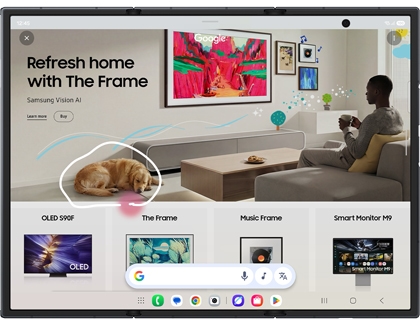
- Swipe up on the results at the bottom of the screen to view more. To get more out of your search, tap Dive Deeper in AI mode at the very bottom of the AI Overview to ask questions regarding your search query and receive context-relevant follow-up results.
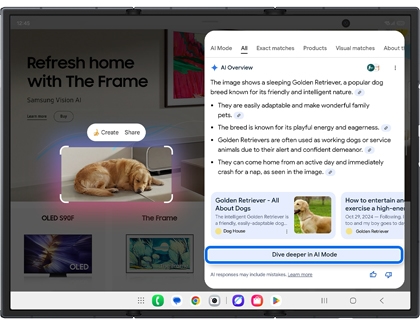
This feature works seamlessly across apps, providing quick access to detailed information without leaving your current screen.
Note
Gemini is a trademark of Google LLC. Results for illustrative purposes. Gemini Live feature requires internet connection and Google Account login. Features may differ depending on subscription and results may vary. Compatible with certain features and certain accounts. Only available to users 18 years or older. Accuracy of results is not guaranteed. Service availability may vary by country, language, device model.
Gemini Live
Gemini Live is an interactive AI-powered feature that enhances communication and productivity on your Galaxy Z TriFold. With real-time video conversations, screen sharing, and seamless app integration, Gemini Live makes it easy to stay connected and get things done efficiently. Here's how to access and use its key features:
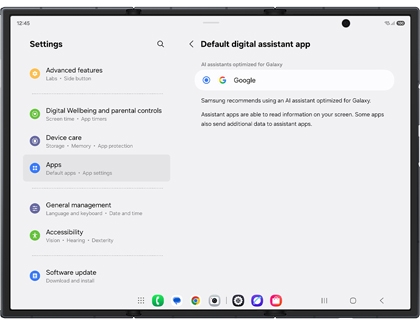
First, set Google as your default Digital assistant:
- Go to and tap Settings, then tap Apps, and then tap Choose default apps.
- Tap Digital assistant app, and then tap Digital assistant app again.
- Tap Google to set it as your preferred assistant app.
Next, set Google to launch using the Side button or voice match:
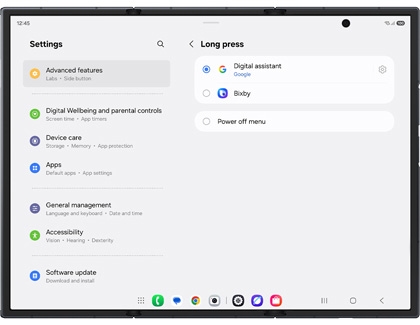
- Side button: Navigate back to Settings, then tap Advanced features, and then tap Side button. Tap Long press, then tap Digital assistant. Tap the Settings icon next to Digital assistant, and choose Google.
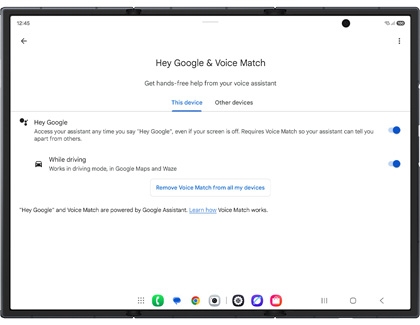
- Voice match: Navigate to and open Settings, then tap Google, and then tap the All services tab. Tap Search, Assistant & Voice, then tap Google Assistant, and then tap Voice Match. Tap the switch next to "Hey Google" to begin adjusting the voice match. Review the information, and then tap Agree. Review the additional information, then tap More, and then tap I agree. Tap Next, and then follow the on-screen instructions.
Now, activate and use Gemini Live:
- Press and hold the Side button or say "Hey Google" to activate Gemini.
- Tap the Live icon (three vertical lines with a star) and listen to the introduction.
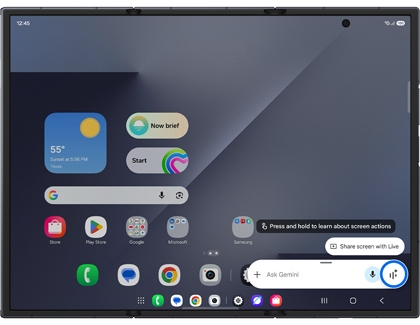
- Swipe to and tap OK to review the "Go Live with Gemini" information.
- Begin conversing with Gemini about a topic of your choice on the Live with Gemini screen.
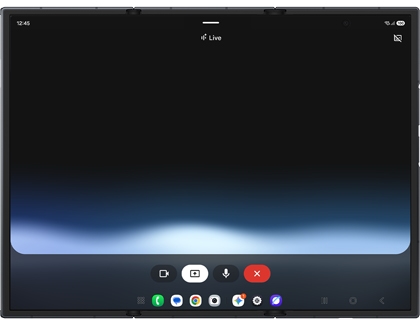
- The following options are available on the Live with Gemini screen:
- Video: Tap the Video icon, position your phone at an object, and ask a question. Gemini will provide details related to the object.
- Share screen: Tap the Share screen icon, select your desired option, and tap Share screen. To stop sharing, open the Notification panel and tap the down arrow on the Google screen share notification, then select Stop sharing.
- Pause: Tap the Pause icon to pause your conversation. Tap the Live icon to resume.
Note: If you navigate away from the Gemini Live, Gemini remains available. Tap Listening… in the top left corner to reopen the Live.
- Close: Tap the Close icon to exit Live with Gemini.
Explore Gemini Live to unlock a smarter, more connected experience on your Galaxy Z TriFold!
Note
You may need to allow permissions or select something on the screen to proceed, such as Send when sending a message.
Seamless actions across apps
Gemini enhances your Galaxy Z TriFold experience by enabling seamless actions across multiple apps. For example, it integrates Google Maps with Samsung Messages or YouTube with Samsung Notes for a streamlined workflow.
- Press the Side button to launch Gemini. Or, say "Hey Google!"
- Give a command using the keyboard or voice, such as:
- "Find a nearby coffee shop with free Wi-Fi and send the address to my friend via WhatsApp."
- "Search for the latest news about the Samsung XR platform and save it as a note for later reading."
- To ask about a video you're watching, press and hold the Side button, and then tap Ask about video.
- Command Gemini, like: "Make a list of locations mentioned in this video and save it as a note."
- Gemini will extract details and save them in the Notes app.
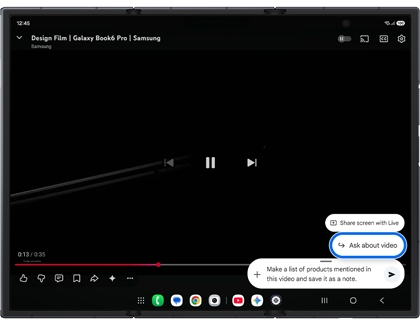
Streamline your tasks effortlessly with Gemini's cross-app integration!




